


⚠️ Before You Delete a Media Item
Before deleting a file, image, or folder from the Media Library, confirm that:
- The item is not linked from published pages.
- The item is no longer needed for legal, compliance, records retention, or archival purposes.
Deleting media that is still in use can result in broken images, missing documents, or broken links on the live site.
Tip: Use the View linked items page to see whether a file or image is being used elsewhere in Sitecore.
If you're unsure whether an item can be deleted, consult your agency's legal, compliance, or records management team.
Delete a Media Library Item
- Navigate to the file, image, or folder you want to delete.
- Delete the item using either of the following methods:
- Right-click the item and select Delete.
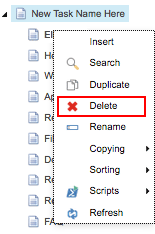
- Select the item and choose Delete from the Home ribbon.

- Confirm the deletion by selecting OK.
- If the Breaking Links dialog appears, follow the steps in Relink deleted pages, media items, or folders to update any affected links.

- Publish the folder that contained the deleted item.
⚠️ Publishing Required
Deleting an item in Sitecore does not remove it from the live website until the parent folder is published.
If you're unsure whether an item should be permanently removed, consider unpublishing it first. Unpublishing removes the item from the live website while keeping it available in Sitecore so it can be reviewed, edited, or republished later. See Unpublish a page, folder, image, or document file.
Once an item has been unpublished and the unpublish action has been published, the item is no longer available on the live website. You can then safely delete the item from the Media Library or Content Tree later without publishing the parent folder, since the item has already been removed from the website.
If you choose to delete an item that is still published, you must publish the folder that contained the item. Otherwise, the deleted item may remain accessible on the website even though it has been removed from Sitecore.
If you do not have publishing permissions, contact a Sitecore Administrator.


