


The Media Library stores files used on your website, such as images and PDFs. When a file needs to be updated, replace the existing item in the Media Library. This ensures the latest version appears everywhere it’s already linked and prevents broken links. All item details - such as title, teaser, and URL - stay the same.
- Click the Media Library icon.

- Navigate to the folder where the current file is stored.
- Click the file to open its properties.
- If a yellow message bar appears, select Lock and Edit.
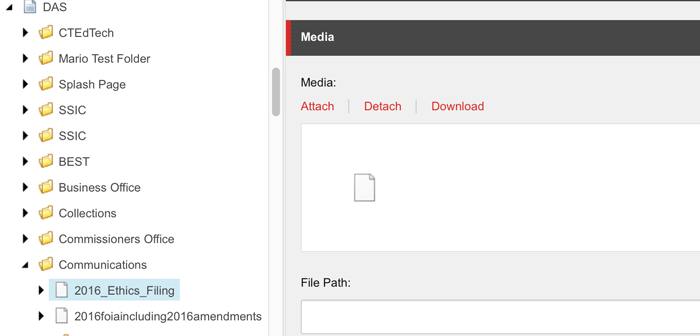
- Scroll to the Media section and select Detach.
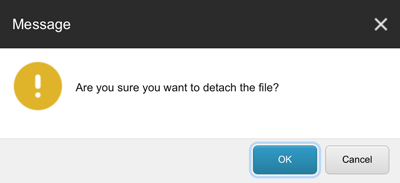
- A confirmation dialog appears - click OK.
- Attach the file.
- In the popup window, click Choose File to browse for the updated file.
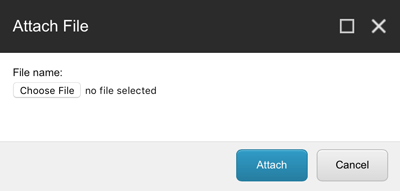
- Select Attach to upload it.
- In the popup window, click Choose File to browse for the updated file.
- Select the Save
 icon. The file has now been updated. All pages linking to this media item will automatically display the updated version once it’s published, and all existing item properties, including the title, metadata and item information remain unchanged.
Note: The URL stays the same when you replace a file. It only changes if you choose to rename the media item. For example, to make the URL cleaner or more descriptive. - Publish the media item. To make the new version visible on the live website, publish the media item. If you do not have publishing privileges you must reach out to your designated Sitecore Admin and have them publish the updated media item.
- Be sure to check the item back in. Click the Edit
 icon in the Home tab and select
  Check In. This unlocks the media item for other editors.


