


⚠️ Important Note:
Before you delete anything (like pages, folders, images, or documents), consider whether it's linked from other pages or if you need it for legal or record-keeping reasons. Deleting something you still use can cause broken links or missing info on the website, confusing visitors, hurting search rankings, or breaking legal rules.
Always review internal policies and consult with your legal or compliance team if you're unsure about whether a content item can be safely deleted.
You can delete a page or content folder in two ways using the Content Editor.
TIP: Before deleting, check if the page or folder is linked to other items using the View Linked Items tool to avoid breaking important references.
From the Content Tree
- In the Content Editor, navigate to the page or folder you wish to delete.
- Right-click the item.
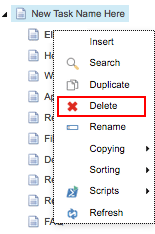
- Select the
 Delete option.
 - In the confirmation dialog box, click OK to proceed.
- If the Broken Links dialog appears, follow the prompts to relink or remove links as needed.
- Publish the parent folder that contain the deleted item to complete the deletion.
NOTE: This doesn’t delete the page or folder. You still need to publish it so the deletion shows up online. To do this, publish the folder where the deleted page used to be (see step 6).
From the Ribbon
- In the Content Editor, select the page or folder you wish to delete.
- Go to the Home tab in the ribbon.
- Select the Delete icon.

- In the confirmation dialog box, click OK to proceed.
If you're deleting a folder, a message will warn you that all sub-items will also be deleted.
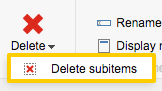
- If the Broken Links dialog appears, follow the prompts to relink or remove links as needed.
⚠️ Important: When deleting a page, always address any link warnings or prompts in the dialog box. Ignoring these prompts will result in broken links elsewhere, which can cause errors and a poor user experience.
- Publish the parent folder that contains the deleted item to complete the deletion.
⚠️ Important: Deleting an item in the Content Editor does not automatically remove it from the live site. You must publish the parent folder to apply the deletion to the live environment.


