


An email hyperlink is a clickable link that allows visitors to easily send an email to a specified address. This is a type of inline link, and it’s created using the Rich Text Editor.
Note: If the page you are editing is Checked in and unlocked, select the Lock and Edit link to check it out and edit the page.

Add or change an email hyperlink
- Within the Rich Text Editor, highlight the email address you want to hyperlink.
- Click the Hyperlink Manager icon
 . The Insert Link box will appear displaying the Hyperlink tab.
 - Select the Email tab.
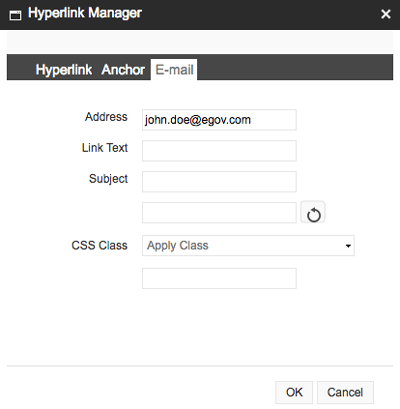
- Address - Enter the email address.
- Link Text - This automatically uses the text you highlighted.
- Subject - Optional - enter text that would be added to the subject line in the email.
- Leave other fields blank.
- Click OK.
- Click the Accept button at the bottom right of the Rich Text Editor box.
- Save
 your changes.
To change the email link, follow the same steps.
Delete an email hyperlink
- From the Rich Text Editor, highlight the email address you want to remove the link from.
- Click the Remove Link icon
 and the link will be removed from the text.
 - Click the Accept button at the bottom right of the Rich Text Editor box.
- Save your changes.


