


Publishing the home page triggers a full‑site publish, which republishes every page under it. This can unintentionally push unfinished content live and slow down the shared publishing queue for all agencies. Use the steps below to publish only the item you intended to update, whether that’s a page or a component.
This reflects how a component based system is designed to work. You make small, focused updates and you publish only the small piece you changed. You do not need to publish the entire page or the entire site to make a simple update.
Why this matters
When the home page is published, Sitecore republishes all child items.

If any pages or components aren’t ready to go live, they will be published automatically. Full‑site publishes have also caused delays across multiple agencies, so this reminder helps prevent further unintended publishes.
Before you publish
- Confirm you are on the specific page or component you edited, not the home page or higher up in the content tree.
- All single‑item publishes must be done in the Content Editor, which provides the correct controls for publishing only one item.
How to publish only the page you edited
Option 1: Publish a single item
- Right‑click the item in the Content Editor and choose Publish Item. This publishes only that specific item. Nothing above it and nothing below it.
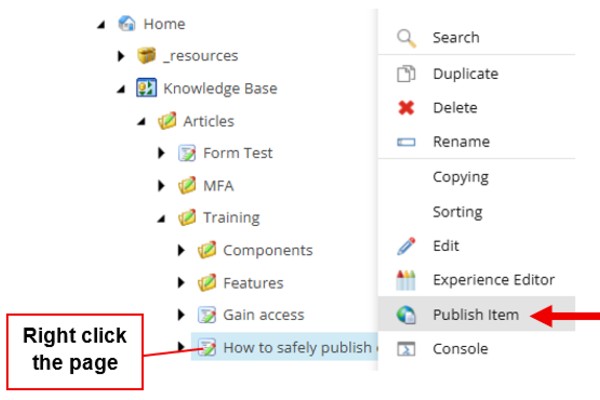
This is the core idea behind component based authoring. You can update a small part of a page, such as a text block, image, or card, and publish only that one piece. You do not need to publish the entire page, and you never need to publish the entire site for a small change.
Use this option when you updated
- Text, images, or links inside a component
- A small piece of content that lives under the page
- A single page that does not need anything else published
Option 2: Adjust the publish dialog
If you click the publish content icon in the ribbon and open the full publish dialog:
- In the Publish window, uncheck “Publish related items.” Related items include child pages, media, and components linked to the page.

- Complete the publish.
Important note
This option is only for publishing the page itself. It prevents Sitecore from publishing child pages, media, or linked content. If you updated the content inside a component, publish that specific item instead by using Publish Item.
When to use each option
- Publish Item: use for quick updates to a single‑page or a single component's content.
- Publish dialog: use when you want to publish the page but prevent Sitecore from publishing anything connected to it.
Recommended practice
Always confirm you are publishing only the intended item, especially when working near the home page or other high‑level pages. Component based authoring is designed to let you publish only the part you edited and keep the rest of the site untouched.


