Update document properties

Article
Read time: 6 minutes

When linking to documents on a Sitecore page, it's important to update the Content Title field in the Media Library. This title is what appears in search results and when inserting documents into pages, not the file name.

Updating the content title:
  • Makes documents easier to find in the Media Library
  • Provides clearer link labels when adding documents to pages
  • Helps maintain consistency across your site

Tip: Title before uploading

To avoid extra editing:

  • Give files a clear, descriptive name before uploading them.
  • Avoid version numbers, internal naming, or unnecessary symbols.

Example:

    • FinalVersion_Report_2025_Q1_v2.pdf
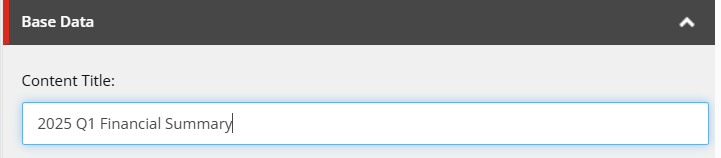
    • 2025 Q1 Financial Summary


    Steps to update a document’s content title
    1. Log into Sitecore.
    2. Open the media library:
    3. Find the document:
      • Use the Content Tree on the left to navigate to the document's folder.
      • Select the document. It will be highlighted in blue.
    4. Lock the item for editing:
      • At the top of the content area, select Lock and Edit.
    5. Update the content title:
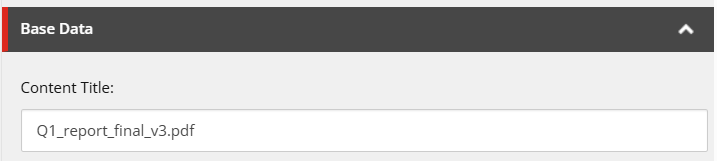
      • In the Base Data section on the right, find the Content Title field.
    6. Enter a clear, meaningful title. (There are no character limits.)

    Example:

      • Default: Q1_report_final_v3.pdf
      • Updated: 2025 Q1 Financial Summary
      1. Save your changes:
        • Click the Save icon in the top left.
      2. Check in the document:
        • Click the Edit icon, then choose Check In from the dropdown.
      3. Publish content.

      Note:

      • Updating the content title does not change the file name or affect the link URL.
Content Editor