


The Sitecore Recycle Bin works like the recycle bin on your computer.
When you delete something in Sitecore, like a page, folder, image, or document, it moves to the Recycle Bin.
NOTE: The Recycle Bin is tied to your account, meaning that only items that you have deleted in Sitecore will be displayed.
Steps to restore a deleted item
Go to the Recycle Bin
- Click the Sitecore logo (top-left corner of the screen)

- You’ll see the Sitecore Dashboard
- Click the Recycle Bin icon.

Use the Recycle Bin tools
At the top of the Recycle Bin page, you’ll see buttons you can use:

-
Restore: Brings the item back to where it was before.
-
Delete: Permanently deletes the item. ⚠️ Be careful! You can’t undo this.
-
Empty: ❌ Never use this! It deletes everything in the Recycle Bin.
-
Refresh: Updates the list of items.
-
Show Versions: Shows different versions of the selected item(s).
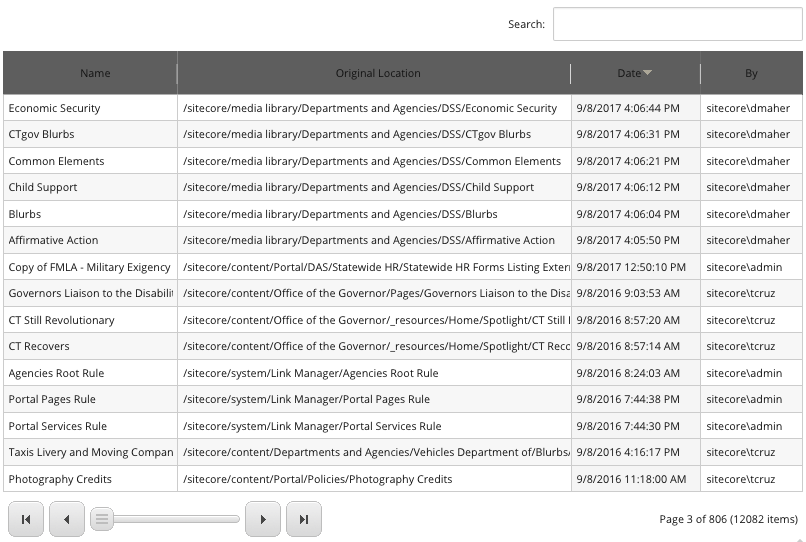
Find the item you want to restore
You can find deleted items by:
- Scrolling through the list
- Using the arrows at the bottom to go to other pages
- Clicking the column headers to sort by name, date, or location
- Using the search bar (top-right of the list)
The list shows:
- Name – The name of the item
- Original Location – Where it was before deletion
- Date – When it was deleted
- By – Who deleted it
Restore the item
-
Click to select the item you want to restore. Selected items turn blue.
-
Click the Restore button at the top.
-
A message will pop up asking if you’re sure.
-
Click OK.
✅ Your item will be restored to the same place it was before you deleted it.
⚠️ Navigate back to that spot and publish it for it to go live.


