Choosing the right component helps your page stay clear, consistent, and easy for people to use. Each component has a specific purpose and a few variations that support different layouts or link options. Use this guide as a reference when planning or updating your pages.
Lead Story: Large text block with one image and one link
Heading level: H2 (generated from the component’s title field)
Use when:
- Introducing a page or section
- Providing background or detailed context
- Writing longer paragraphs such as page intros, overviews, or contact sections
- Using one of the Lead Story design variations when placed lower on the page
- Choosing from the 6x6, 4x8, or 3x9 full-width variations
Avoid when:
- You need more than one link
- Your content is task based or functional
Example
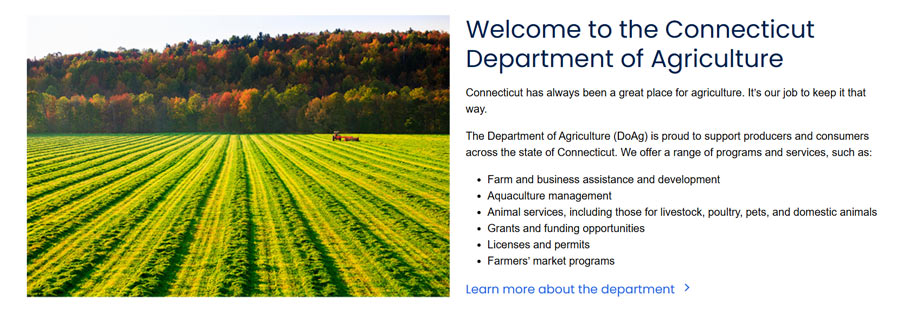
Learn how to build and format a Lead Story
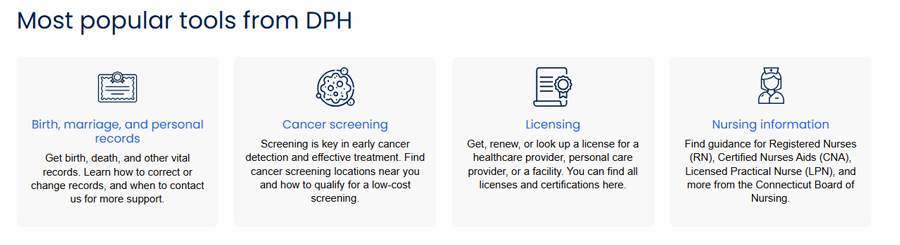
Tile cards: Tiles with a short description, link, and optional icon
Heading level: H4 for 'Icon' and 'Text' styles
Note: The 'New' Tile Card style has no title field and does not generate a heading
Use when:
- Directing people to two or more key services, topics, or actions
- Creating scannable, task-based navigation
- Highlighting priority links on a page
- Choosing from variants such as:
- Component title as the call to action
- Tile card with icon
- Tile card with component title
- Tile card lists for multiple rows
Avoid when:
- You only have one link
- Your content needs more than one or two sentences of context
- You need imagery
Example
Featured content cards: Image-based cards with a title and link
Heading level: H3
Use when:
- Promoting programs, initiatives, or featured content
- Drawing attention with imagery
- Highlighting two or more items visually
Avoid when:
- Your content is purely navigational
- You need descriptions or explanations
Example
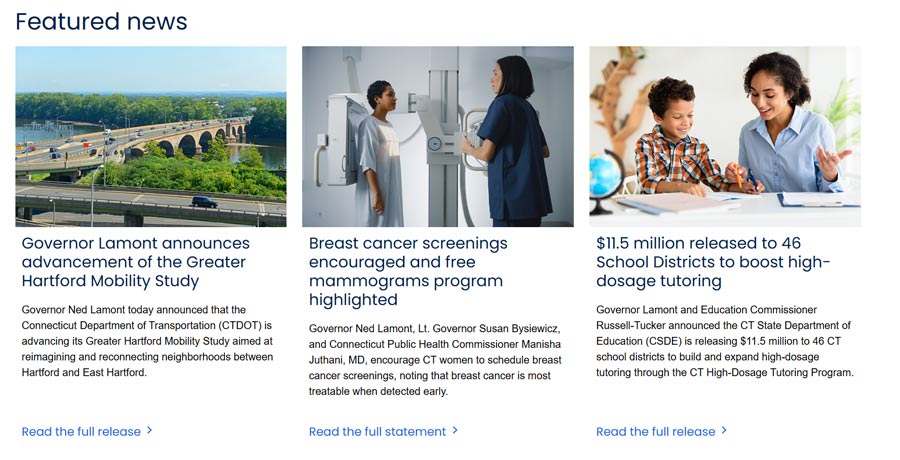
Learn how to build Featured Content Cards
Story group: Lead story with related sub-stories
Heading level: H2
Use when:
- Highlighting one main topic with two or more related items
- Grouping related programs, articles, or updates
- Providing context first, then linking to supporting content
- Choosing between two to four sub-stories
- Selecting from variants such as:
- Standard with dividers
- Tile card variant
- Sub-stories with images
- Tiles consolidated variant
Avoid when:
- Your content is purely navigational
- Your topics are not clearly related
Example
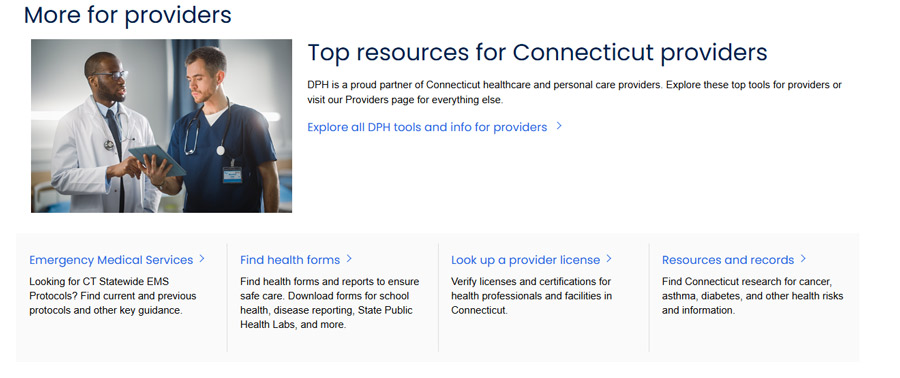
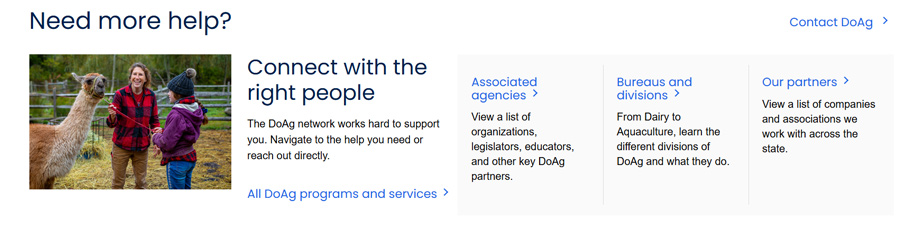
Learn how to build a Story Group
Multistep: Full-width block with an icon, short description, and two or more links
Heading level: H3
Use when:
- Showing steps in a process
- Grouping related links under one shared description
- Guiding people through a sequence or workflow
Avoid when:
- Steps are optional or not sequential
- Links are unrelated
- You only have one link
Example
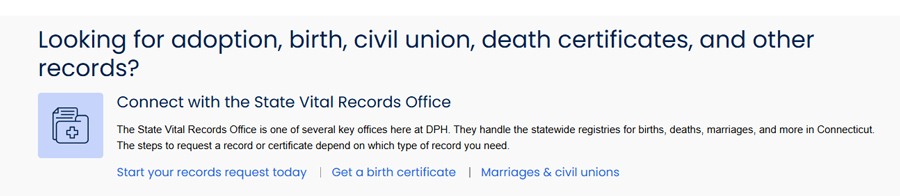

Learn how to build a Multistep component
Link list: Simple list of links, sometimes in columns
Heading level:
Link list group title: H3
Link list title: H4
Use when:
- Linking to many resources
- Maintaining content that changes frequently
- Providing lightweight navigation
- Creating a page that needs a right rail
Avoid when:
- Links need images or icons
- Links require more than a short description
Example
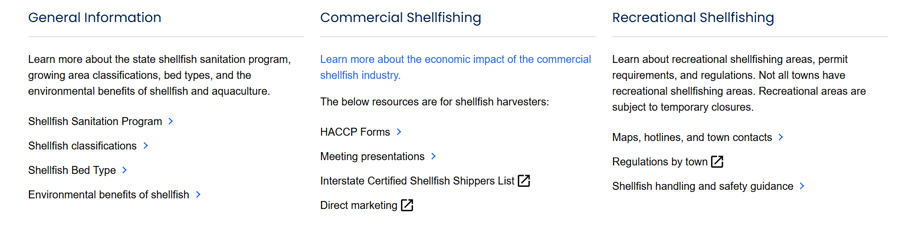

Learn how to build a Link List
Accordions: Expandable sections that reveal content when clicked
Heading level:
Accordion group: H2
Accordion sub group: H3
Use when:
- Including optional or secondary information
- Reducing page length and clutter
- Allowing people to choose what to view
- Selecting from simple accordions or accordion groups
Avoid when:
- Content is critical or must be seen by everyone
- People need to compare multiple items at once
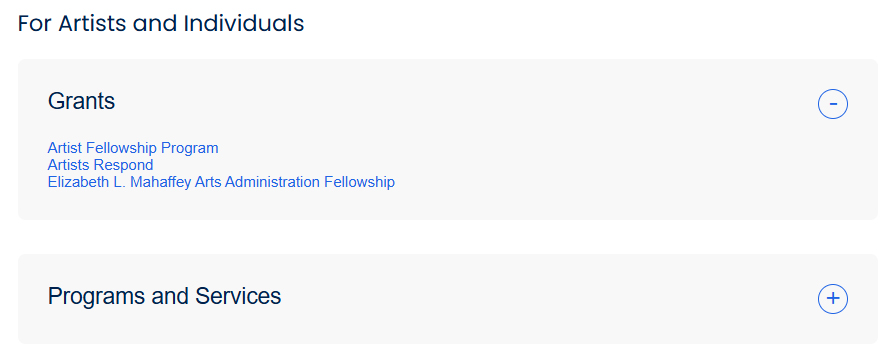
Example
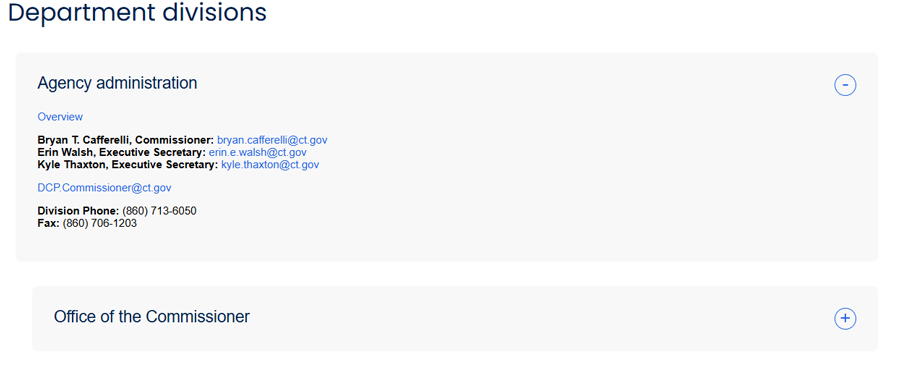
Rich text: Simple plain text box
Heading level:
- When used as the page title: H1 (typed in the editor; Title field left empty)
- When used anywhere else: H2 (generated from the Title field)
Use when:
- Providing instructions or descriptive text that does not require a visual component
- Adding supporting text between other components
- Creating the page title by typing the title in the editor and marking it as H1
Avoid when:
- A separate article is more appropriate
- An image or other media would support the content
- You need a component that provides structure or layout
Example

Learn how to use the Rich Text component
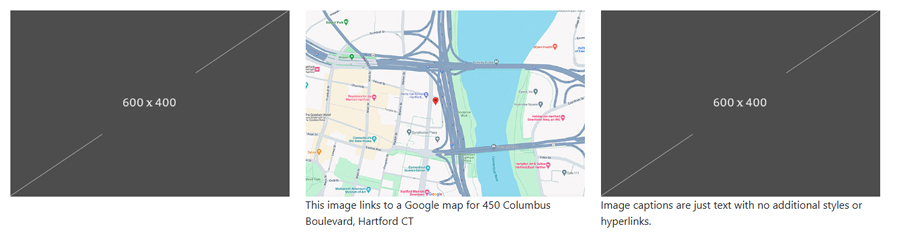
Image component: An image with a single hyperlink
Heading level: None
Caption only; add an H2 using the Sublayout title
Use when:
- Linking the image directly
- Linking to a map or external site through a logo
Avoid when:
- The image contains meaningful text
- The image has low contrast text overlaid on it
Example
Learn how to use the Image component
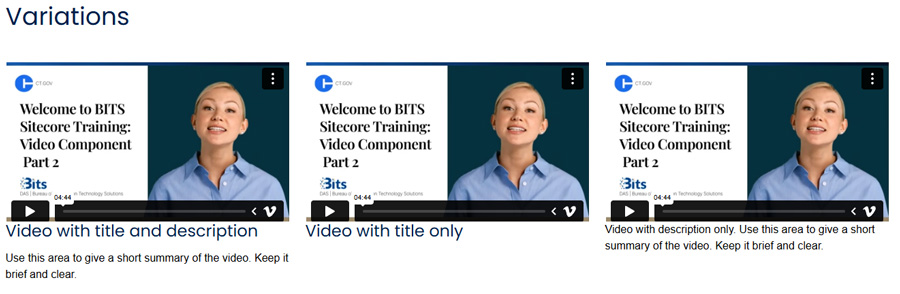
Video component
Heading level: H3 (optional title field)
Use when:
- Embedding a video with an optional title and short description
Avoid when:
- You are linking to a video hosted outside of Sitecore
- You need to link out rather than embed
Example