


Overview
Images must be uploaded to the Sitecore Media Library before they can be used on a page or in a component. You can upload images directly from the Media Library or from inside the rich text editor or a component while editing a page.
This article covers both methods.
Before you begin
Make sure your image is ready for upload.
- Confirm you are uploading to the correct Media Library folder
- Use a concise and unique file name
- Format images at 600 by 400 pixels at 72 DPI so they appear correctly on CT.gov
Quick links
Use these links to jump to the section you need.
Method 1: Upload an image from the Media Library
Use this method when you want to upload images directly into a Media Library folder.
Steps
- Open the Media Library
Open the Media Library from the landing page, or if you are already in the Content Editor, open it from the bottom left, or the drop down in the upper right.
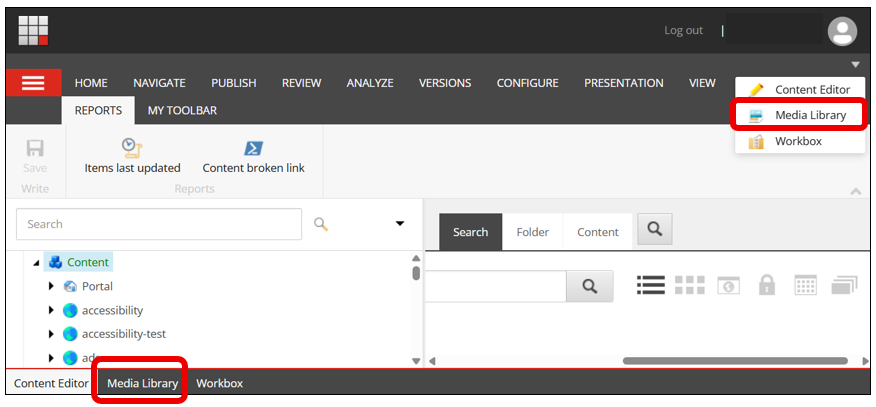 The Media Library window opens
 -
Navigate to the correct folder (browse the Media Library tree and select the folder where you want to store the image)
- Upload the image
Select Upload File
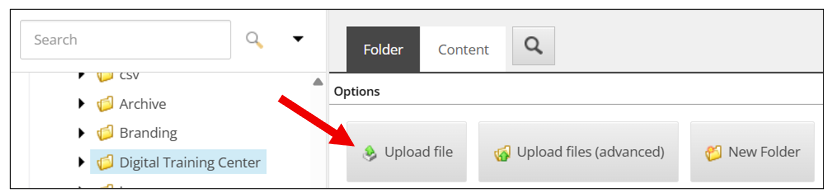
In the upload window:
- Select Choose File
- Browse and select your image (you can upload one image at a time with this option)
-
Select Upload
Then, select the Save  icon located at the top left of the screen and Publish.
Method 2: Upload an image from inside a component
Use this method when you are editing a page and want to upload an image directly from an image field in the Content area of the component.
Steps
- Click Browse by the image area in the Content section of the component

- Confirm the destination folder (select the folder you’d like to add the image to in the Media Library).
Select the Tree view (upper right) if needed. Note: if you forget to select the folder you may also choose “Change Destination” on the next screen”.

- Once you select the folder, click Upload media

- Select Browse for media files

- Navigate to the image saved on your computer and select the image to upload.
- Click Open
- Add Alternate Text if applicable (or if you'd like to change from the alternate text that you may have added in the last step).
- Click Upload media (upper right)

- Now the media library image is uploaded and you may select it in the tree. After selecting it in the folder you uploaded it to, click Select (bottom right).
- Continue editing the component.
- Select the Save icon located at the top left of the screen.
- Publish
Accessibility guidance
- Add alt text only when the image conveys meaning
- Leave alt text blank for decorative images
- Use plain language descriptions
- Avoid repeating text that already appears near the image


