

Update Banner
Insert an Update Banner Rendering
1. Choose a sublayout placeholder area to add the Update Banner rendering into.
a. Optimal sublayout will be a Full-Width-Sublayout if you wish it to display like example above.
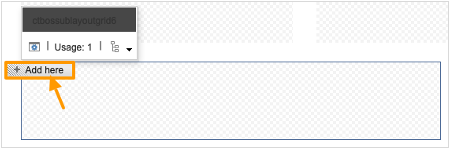
2. Select the Update Banner tab, then select the Update Banner rendering.

3. Click the Select button. The Select Associated Content dialog box appears.
4. Select the Update Banner item, then select the Create link.

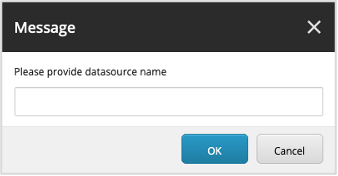
5. Enter the name of the Update Banner.
6. The Update Banner rendering will appear in the page, ready to edit.
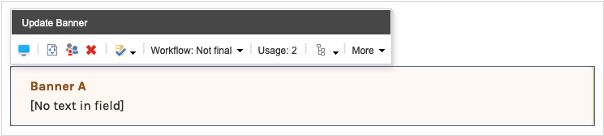
7. Save your changes.
Edit an Update Banner Item
The Update Banner rendering is made up of:
• Title
• Description
1. Click on the Update Banner Title to change it.

2. Click on the Update Banner Description to add content.
a. You can add/modify content directly on the page and add basic styling, links, images.

b. You can select the pencil icon to launch the Rich Text Editor for more editing capabilities.
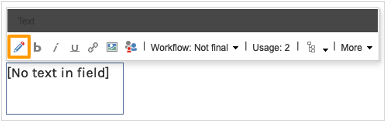
c. The Rich Text Editor allows you to add content, hyperlinks, images, tables, etc.
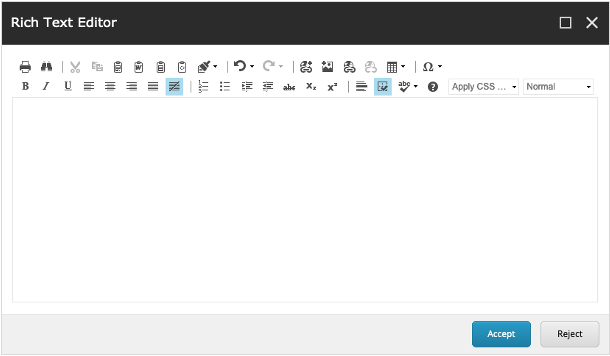
d. After content is added, select the Accept button to exit the Rich Text Editor.
e. Save your changes.
Example of an Update Banner when completed:
 |
This view displays in the following sublayouts: • 3-3-3-3-Sublayout • 4-4-4-Sublayout • 4-8-Sublayout (in the larger area) • 8-4-Sublayout (in the larger area) • 6-6-Sublayout • Full-Width-Sublayout (Optimal) • Mobile view |