

REACT Resources and Instructions
The REACT Online Portal is the format and form prescribed by the Commissioner for submittal of documents to the Department. Please create an account and upload all documents through this portal. If there is a regulatory requirement to submit a form and you do not see a form on DEEP's webpage you may upload a letter.
There is no need to create an account unless you will edit data or upload submittals.
REACT User Guide (February
27, 2026)
How to Create an Account to become an Authenticated User to manage cases and upload submittals
REACT Online Portal Introduction Training Session slides are on the Training page.
Questions? Contact DEEP.REACT@ct.gov
Environmental Cleanup Comprehensive Map Viewer - An online ArcGIS tool to view geospatial information related to environmental cleanups
Quick Property Search Instructions
Anyone can Search for individual properties, which may be done in two ways:
- On the map, drag and scroll to the area you want to see. Either use the + icon at the upper left of the map or scroll up until you see triangles and click on a triangle to see the address. The selected triangle is purple and the others are yellow.
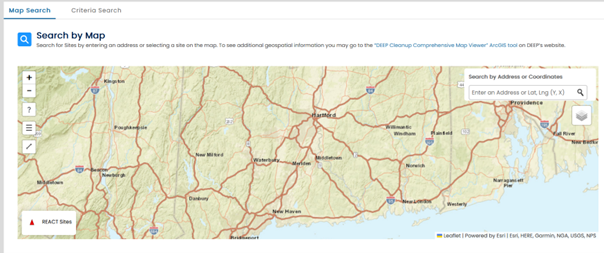
- Type the address or partial address into the search box to the right. A list will appear under the search box where you can select an address. A blue raindrop will appear at the selected address and triangles showing the location of reported releases or properties undergoing cleanup will appear.
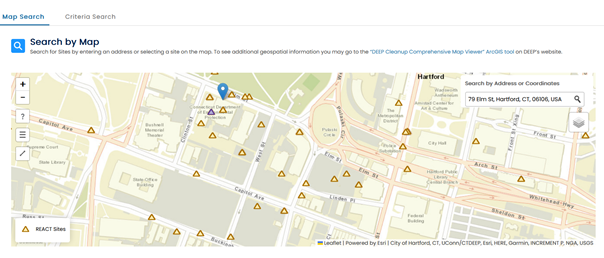
- Cases at that address will appear below the map however, the cursor must be off of the map to scroll down to it.
To Become an Authenticated User
For property/facility owners, attorneys, environmental consultants, etc. who will upload documents and edit information in the REACT portal.
On the public portal page click on the "Sign In" feature in the upper right of the screen. This will bring you to an account creation screen. You will be asked for contact information and to set up a username and password, as well as to select a 2-Factor Authentication method.
When Authenticated Users log into the portal, they will get a message asking whether to send an authentication code to the telephone, text, or email for 2-Factor Authentication. Select one and enter the code into the page. A notice appears that must be read and agreed to in order to be able to enter data into REACT.
Getting Started
First, find your case. Click on Search for Properties then scroll on the map or type the property address into the box to the right on the map. Select the triangle associated with the property on the map then select the case associated with the release or site beneath the map. If you have not yet worked on a case in REACT that existed as a case in a legacy database prior to REACT's launch, then you may need to add the Regulated Entity if it is not already populated. Then you can add yourself as an Affiliate to the case. Look for the Add/Edit Affiliate button(s). For questions contact DEEP.REACT@ct.gov
REACT Instructional Videos - planned for future!
Content last updated June 26, 2026